I needed a way to close the loop in Maya.
I had already built the open-source Maya MCP server. It acts as a bridge between an agent and Maya, so the agent can inspect a scene, change things, run tools, and capture the viewport instead of only talking about what Maya should do.
I then made a small service called MayaSessiond to keep Maya and the MCP server alive between calls. Instead of starting Maya again for every small action, an agent could continue working in the same scene and session.
That made development much better, but it still did not close the loop.
The MCP server lets an agent work inside Maya. MayaSessiond keeps that Maya session available. Neither one answers the release question on its own: does the exact build still work when it is placed in a clean Maya session and the important flows are run again?
I also did not want development and final testing to fight over the same machine. A long-lived Maya session is useful while building something. It is less useful as clean proof because it already contains the history of that development session.
So I created Maya Stall.
The starting idea came from Crabbox by Peter Steinberger. I liked its loop: keep the development work local, send the exact work to another box, run it there, and collect the output and evidence afterwards.
Maya Stall takes that shape and makes it specific to Maya. It uses owned Windows Maya machines, real interactive Maya sessions, Maya-aware checks, and screenshots or recordings from the same desktop.
Most of my development happens on a Mac. That is where I write code and run my agents.
The actual Maya work happens on Windows. My clients use Maya on Windows, so that is the environment I care about proving. Testing there also catches the Windows plug-in build, paths, dialogs, and desktop behavior they will actually get.
I keep one Windows Maya machine for interactive development with MCP and MayaSessiond. Other Windows Maya machines on the network are available for isolated test runs and quality checks. Maya Stall sends a test to a suitable machine, starts a fresh Maya session, copies over the exact files needed for that test, checks the result, and brings the evidence back to my Mac.
A Row of Maya Stalls
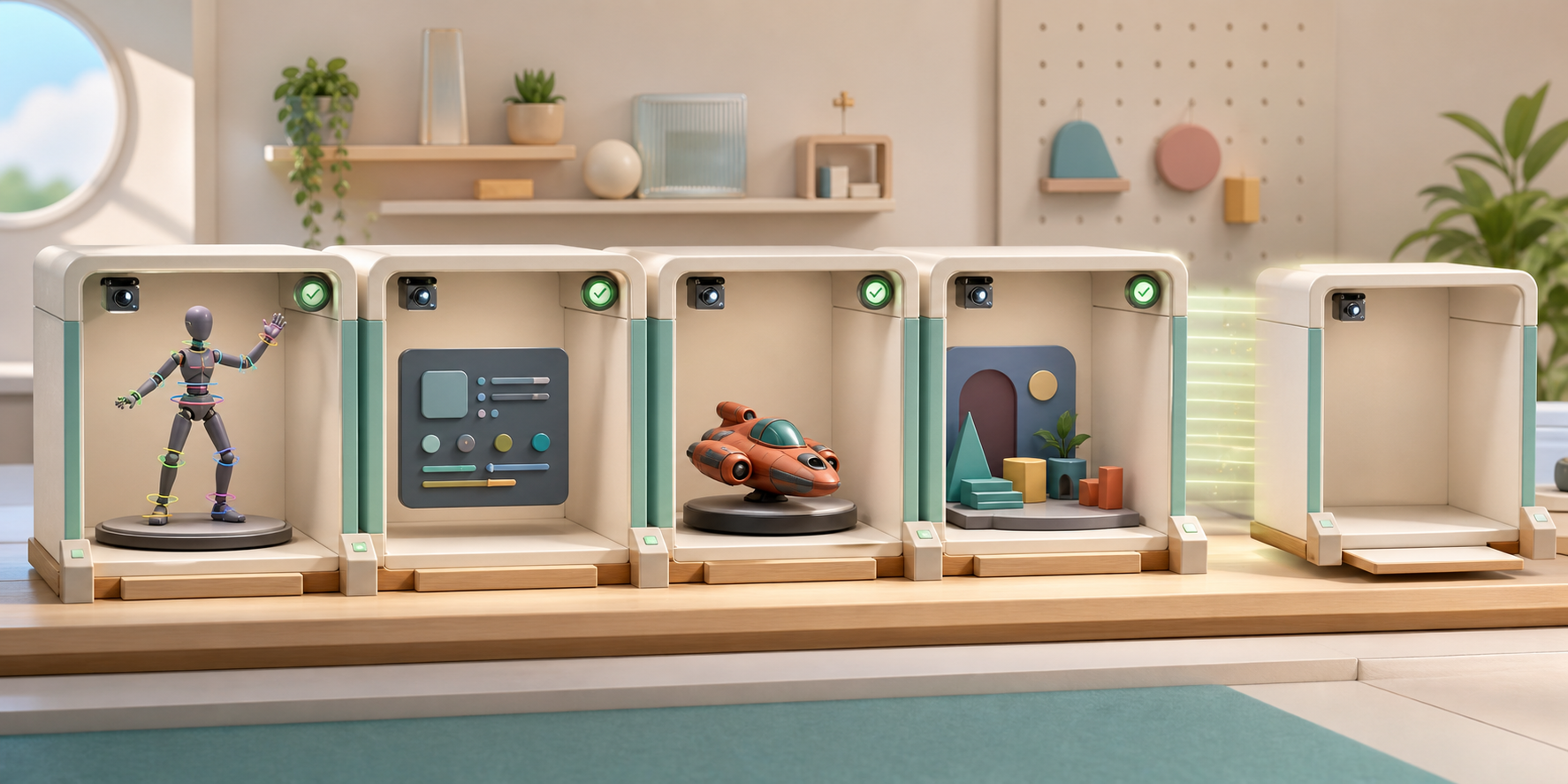
I like to think of those test machines as a row of stalls.
One stall can contain a rig. The next can contain a UI. Another can test a model, animation, plug-in, or older scene. Each gets its own workspace, Maya session, files, and checks.
The stall is the isolated run, not a new computer created from nothing. The Windows Maya machines are already installed and waiting on the network. Maya Stall creates a clean workspace and Maya session on one of them, uses it for one run, then clears it again.
One machine provides one interactive Maya slot at a time. With several machines, different stalls can run at the same time without clicking, saving, or closing each other’s work.
That gives the development setup two different jobs.
My Mac is the place where I develop and direct the work. The interactive Windows Maya machine is where I can keep context around while working. The other Windows machines are where I ask the same focused questions from a clean start.
A rig stall might pose controls and inspect the deformation. A UI stall might open a panel and press its buttons. A model stall might inspect geometry or exported files. A scene stall might open an older file and check that it still behaves correctly.
The project supplies the Maya knowledge. It describes what goes into the stall and what a correct result looks like. Maya Stall handles the machine, the clean run, the evidence, and the cleanup around it.
Why I Do Not Only Test It By Hand
I still test things by hand. It is often the fastest way to understand a visual problem.
It becomes a bad release process when the same checks need to happen again and again.
Did I load the newest build? Was Maya clean when I started? Did I use the same old scene as last time? Did I remember undo and redo? Where did I put the screenshot? What happened just before the warning appeared?
Unit tests help, but they answer smaller questions. A headless Maya check helps too, but it cannot prove that a button is visible, that a modal window is blocking the application, or that the viewport looks right.
The final check needs to happen where the user will find the problem: in the real application.
Letting the Agent Use the Real UI
This is one part of Maya Stall I find especially useful.
The agent is not blind. It can request a screenshot of the whole interactive Windows desktop, not only an image from Maya’s viewport.
That means it can see the Maya window, menus, tool panels, warning messages, save dialogs, and anything else sitting in front of the application.
It can then click a point in that real desktop and take another screenshot to see what changed. In practice, the loop is the same as working with a person over screen sharing: look, click, look again.
This matters because a test can be correct behind the scenes and still be stuck on a visible prompt. It also makes it possible to test the actual buttons and menus instead of calling the code underneath them and assuming the UI works.
A CurveDeform Run
Loading a plug-in is useful proof, but it does not show whether the tool actually does its job. A better check is to move CurveDeform’s profile controls and see whether the mesh follows them. The result should also survive saving and reopening the scene.
The two captures below come from my interactive CurveDeform development session. They show the exact behavior I want a stall to reproduce. First, the sphere is at rest, with the pink handles and orange profile controls around it.
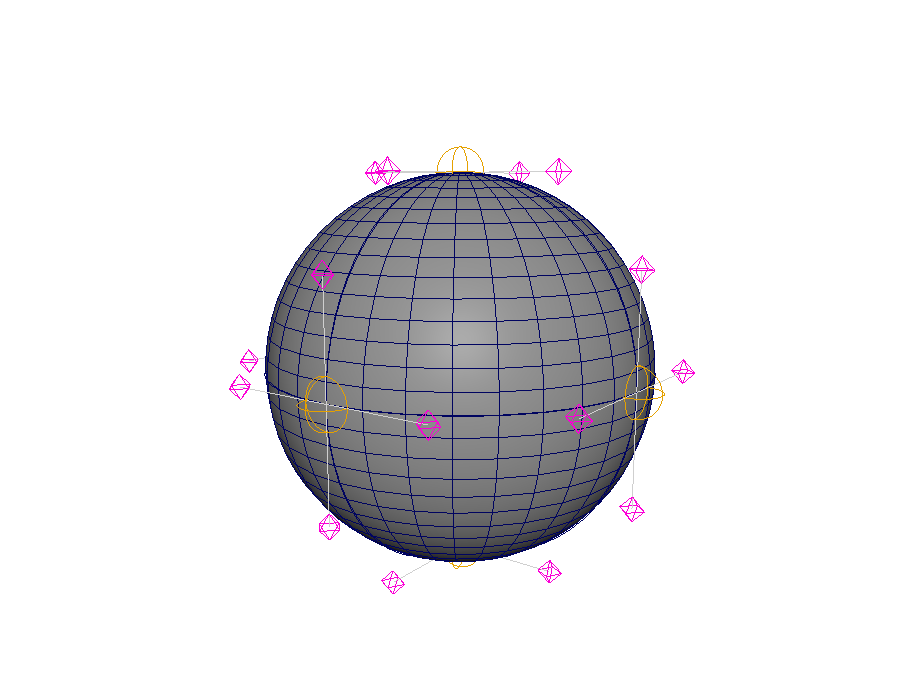
Before moving the CurveDeform controls.
After moving the controls, the sphere changes shape. This is the visible result I care about: not only that the plug-in loaded, but that an artist action changed the geometry.
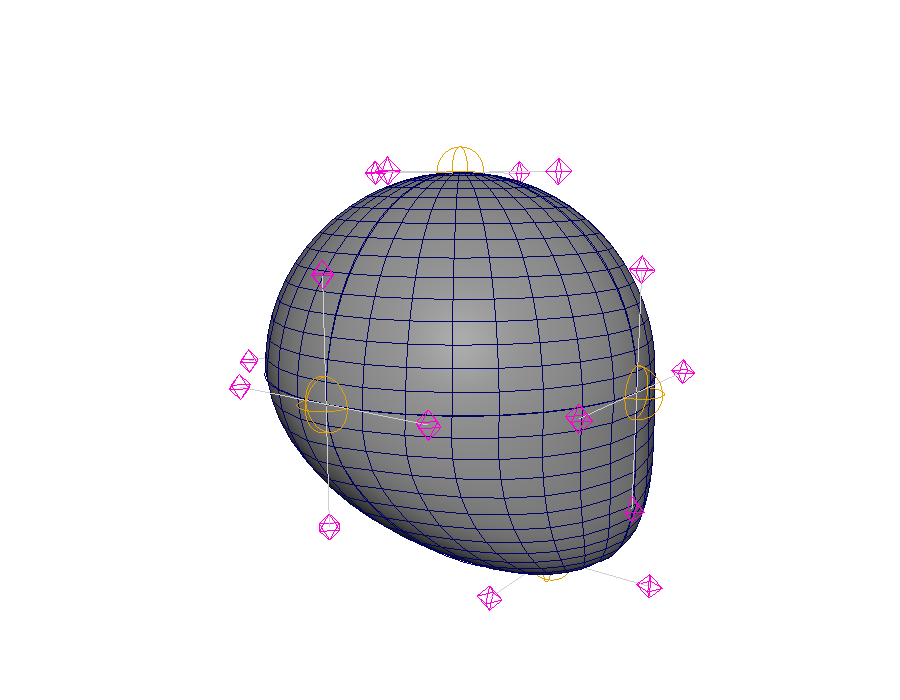
After using CurveDeform to move part of the surface.
I can save that whole check as one Maya Stall Scenario. The run starts clean Maya on Windows, loads the exact CurveDeform build, opens the test scene, uses the tool, and measures the changed vertices. It then saves the scene, reopens it, and checks that the deformation is still there.
The agent can see the whole desktop while this happens, click the real UI, and take another screenshot to see what changed. Those screenshots and clicks stay attached to the active run. While that stall owns the Maya computer, another run cannot reach in and click its desktop.
If it passes, I have more than a green check. I know which build ran, which Maya session owned it, what the Scenario checked, and which files came back.
If it fails, I have the screenshot, recording, logs, result, and saved scene needed to investigate. I can also keep the failed Maya session open for a while instead of cleaning it immediately.
That last part is useful for failures that are hard to reproduce. The broken state is still there, in the exact Maya session that produced it.
Under the Hood
The command-line tool is called maya-stall.
In my setup, the Mac and Windows machines can reach each other through a private Tailscale network. Each Windows stall is reachable over SSH.
Maya Stall uses that SSH connection to prepare the run on the selected Windows machine, start or talk to its Maya session, and collect the results afterwards. Tailscale gives the machines a private network between locations; SSH is the transport Maya Stall uses over that network.
A project keeps named Scenarios such as rig-smoke, ui-buttons, save-and-reopen, or old-scene. Each Scenario lists its scripts, plug-in build, scenes, expected output, and evidence rules. Private machine names, login details, and other secrets stay outside the project.
I can inspect what a Scenario will use without starting Maya:
maya-stall plan ui-buttons
doctor checks whether the Maya computer, desktop session, Maya version, workspace, and capture path are ready:
maya-stall doctor --scenario ui-buttons
Then the run itself is one command:
maya-stall run ui-buttons
Maya Stall gives the run an ID, chooses a compatible Maya Host, locks it, creates a clean workspace, and starts a fresh Maya UI session. It copies only the files declared by the Scenario.
During an active or kept run, the same ID can be used to look at and click the desktop:
maya-stall attach <run-id> screenshot
maya-stall attach <run-id> control click --x 960 --y 540
The project writes a structured result with its own assertions and measurements. Maya Stall can add generic checks around it: whether a file exists, whether a JSON value matches, whether a number is close enough, whether a hash is correct, or whether visual evidence was captured.
Everything useful from the run is collected into an Evidence Bundle. That bundle can stay on owned storage and be linked from a GitHub pull request or GitLab merge request.
The simplest setup lets the CLI own this lifecycle directly. A larger setup can use a shared Control Plane. It records run history, queues work while suitable Maya Hosts are busy, and assigns the next Scenario when one becomes available.
Maya Stall spawns a clean run, workspace, and Maya session. It does not create a new Windows computer each time. The Maya Hosts are already installed and prepared.
The getting-started guide goes further into the setup. The concepts page has the complete vocabulary.
Maya MCP and Maya Stall
Maya Stall is related to the open-source Maya MCP server, but I use them for different jobs.
Maya MCP gives tools such as Codex or Claude a controlled way to work with an open Maya scene. It can inspect nodes, change attributes, work with geometry, run allowed scripts, and capture the viewport. It is useful while an agent and I are actively working in Maya.
Maya Stall sits around that interaction. It owns the clean start, the selected machine, the files going into the run, the lock on the desktop, the saved Scenario, the result, the evidence, and the cleanup afterwards.
The Windows-side session service can use Maya MCP to communicate with Maya. Maya Stall turns that communication into a repeatable release check.
Where It Fits
Maya Stall is not meant to replace small tests, builds, or normal creative work in Maya.
Fast checks should still happen first. I should still open Maya myself when I am exploring a rig or judging a visual result.
Maya Stall is for the point where I want to stop saying, “I tried it in Maya and it seemed fine.”
I want each rig, UI, model, scene, or plug-in flow to have its own clean place to run. I want the agent to see the real application and use it. And when the run is over, I want enough proof to understand exactly what happened.
That is the shape of the tool.